AutoReel AI Virtual Staging: Instantly Enhance Any Room

Summarize with AI


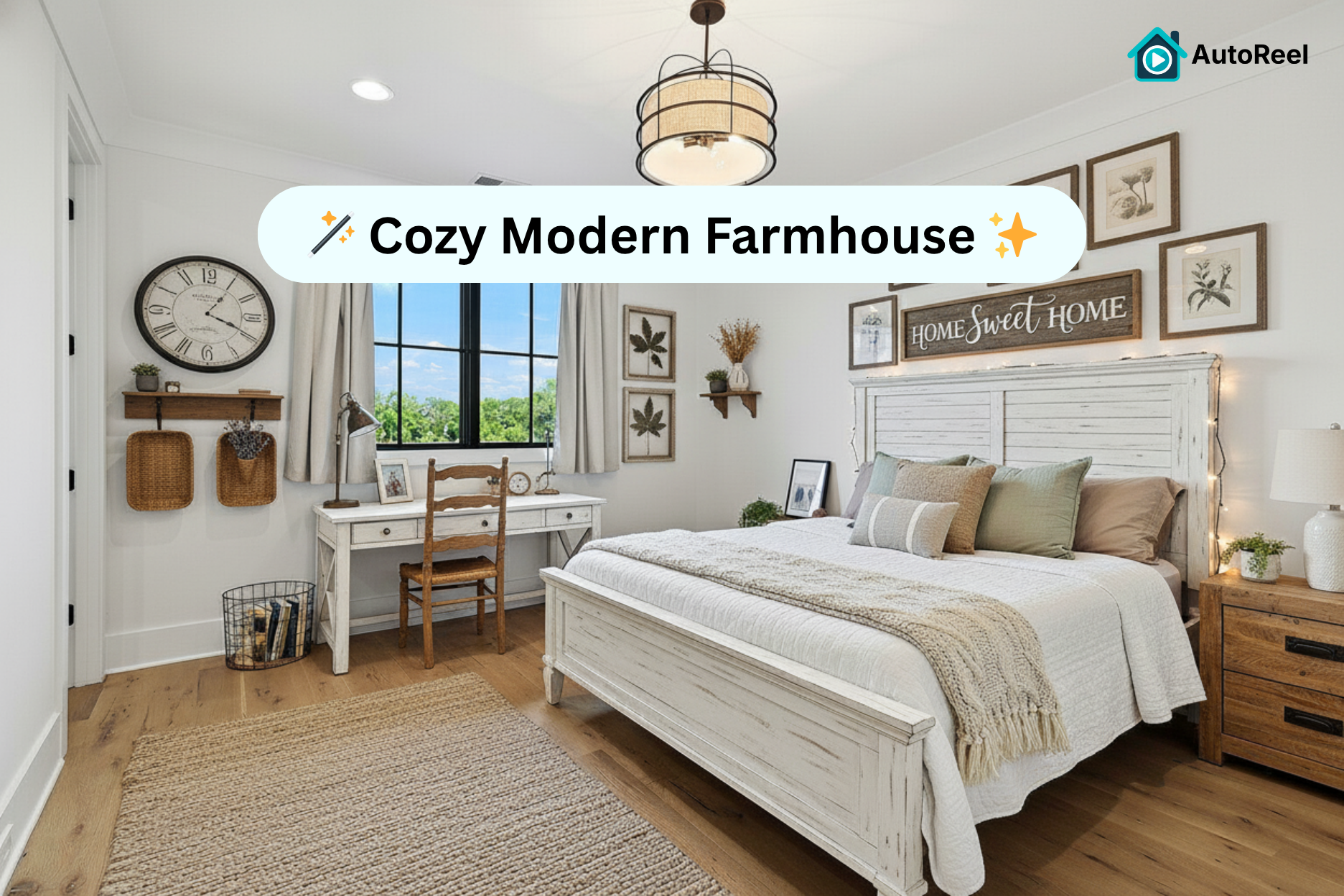
If you've ever tried to market a vacant room, a poorly furnished space, or an oddly laid out area, you know: buyers struggle to visualize potential. Now with Virtual Staging and AI Photo Edits built into AutoReel, you can enhance photos, furnish empty rooms, and generate polished videos all in one platform.
The best part? While in Beta, AI Virtual Staging is included at no additional cost in any AutoReel paid plan.
What Virtual Staging Can Do
Supported furniture styles
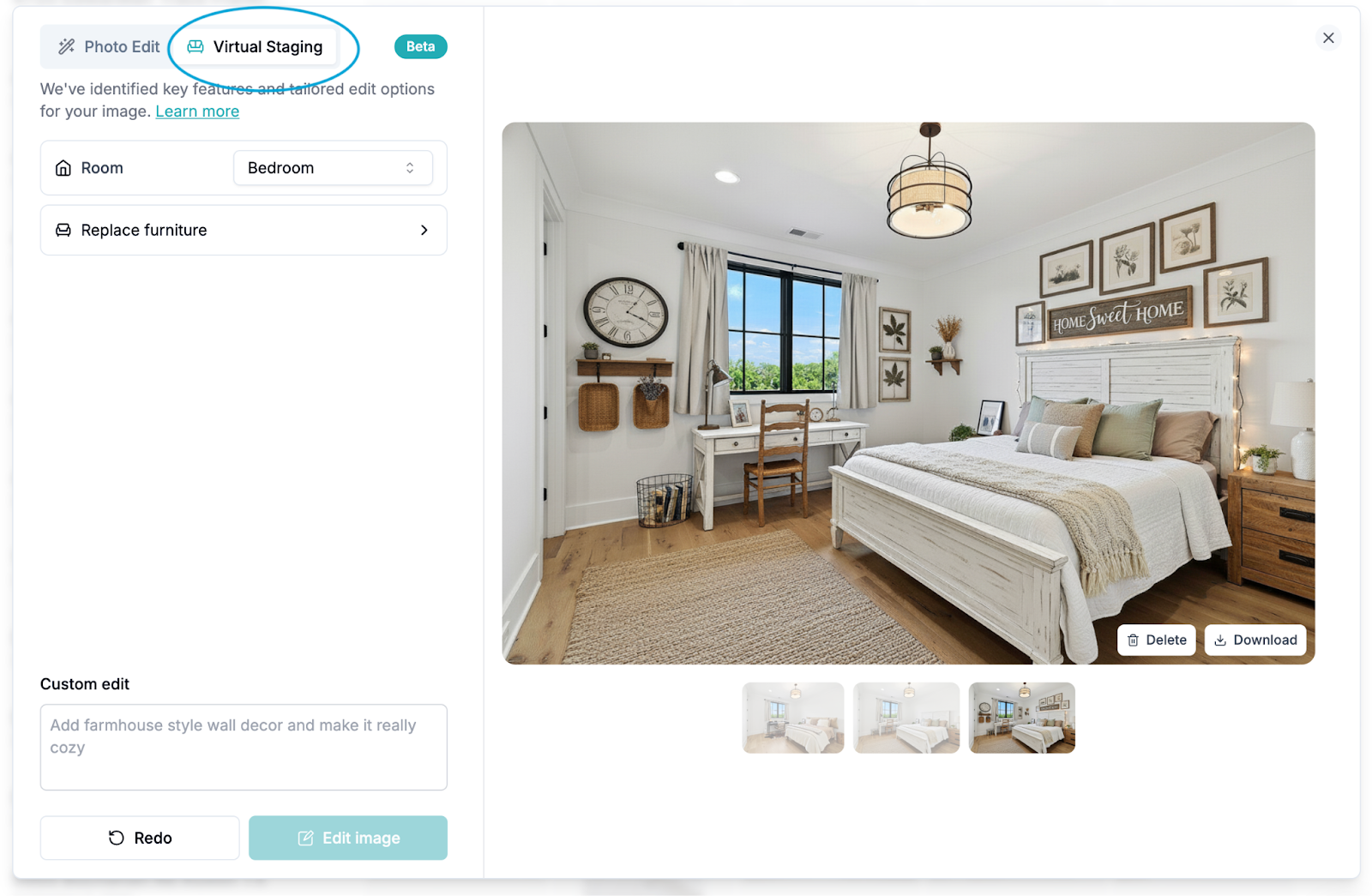
Virtual Staging is built on top of AI Photo Edits and works in a similar way — it's encouraged to read the guide on Photo Edits as a starting point. It sits next to Photo Edits in the same modal window — simply toggle the Virtual Staging tab when you need to furnish or refurnish a room.
How To Use Virtual Staging
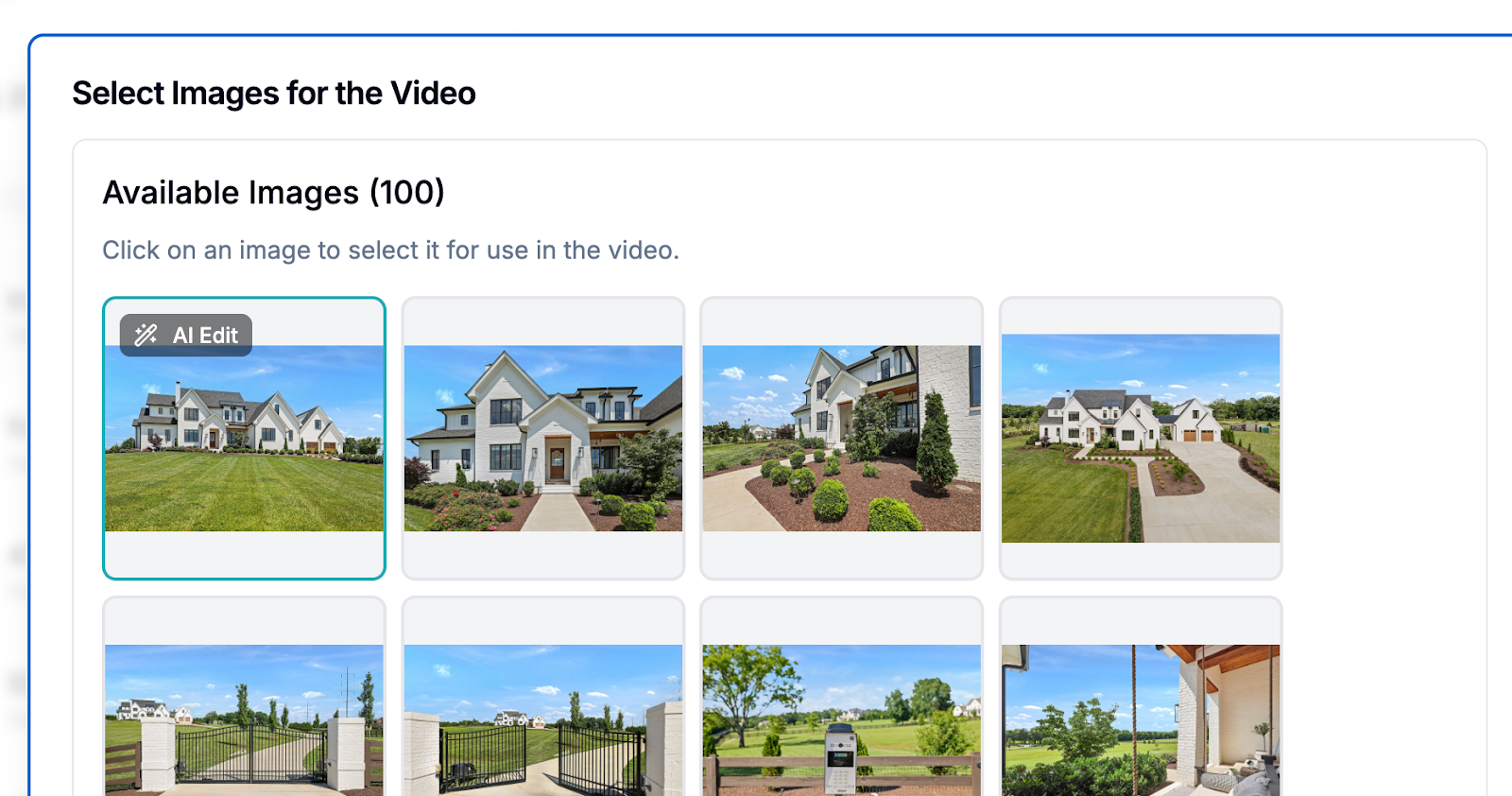
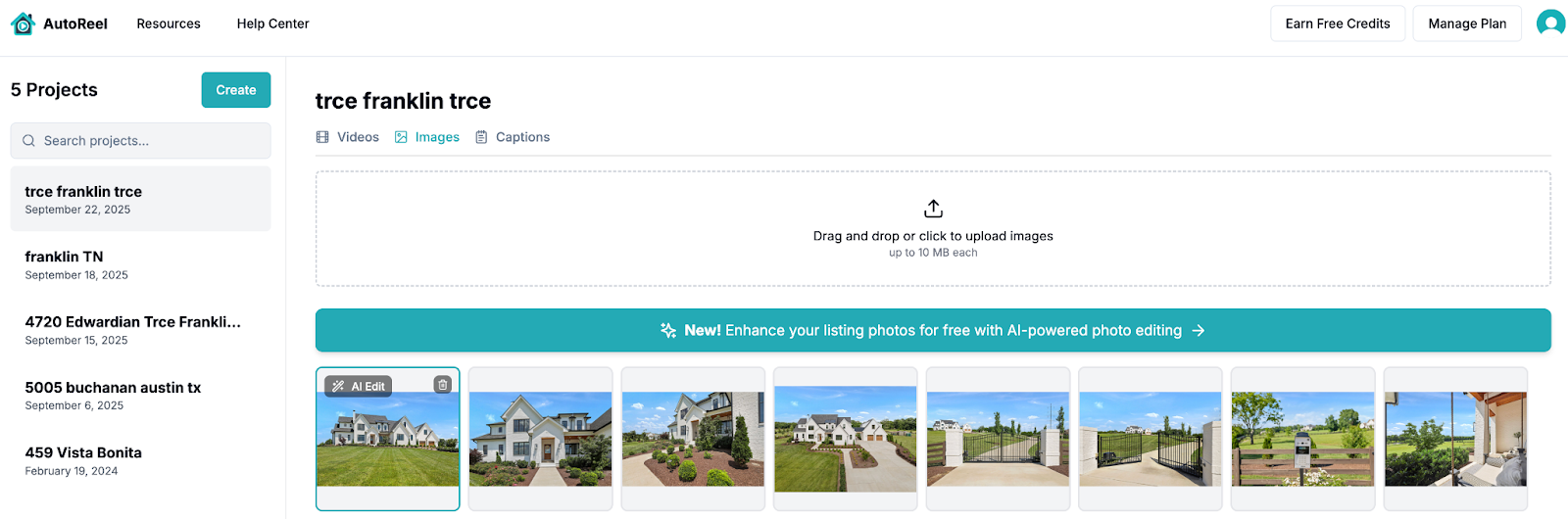
Two ways to start: During Video Creation (left) or Image Gallery within a listing (right).
You can start from either the Video creation flow or the Image Gallery underneath a project.
Step 1) Open a Photo
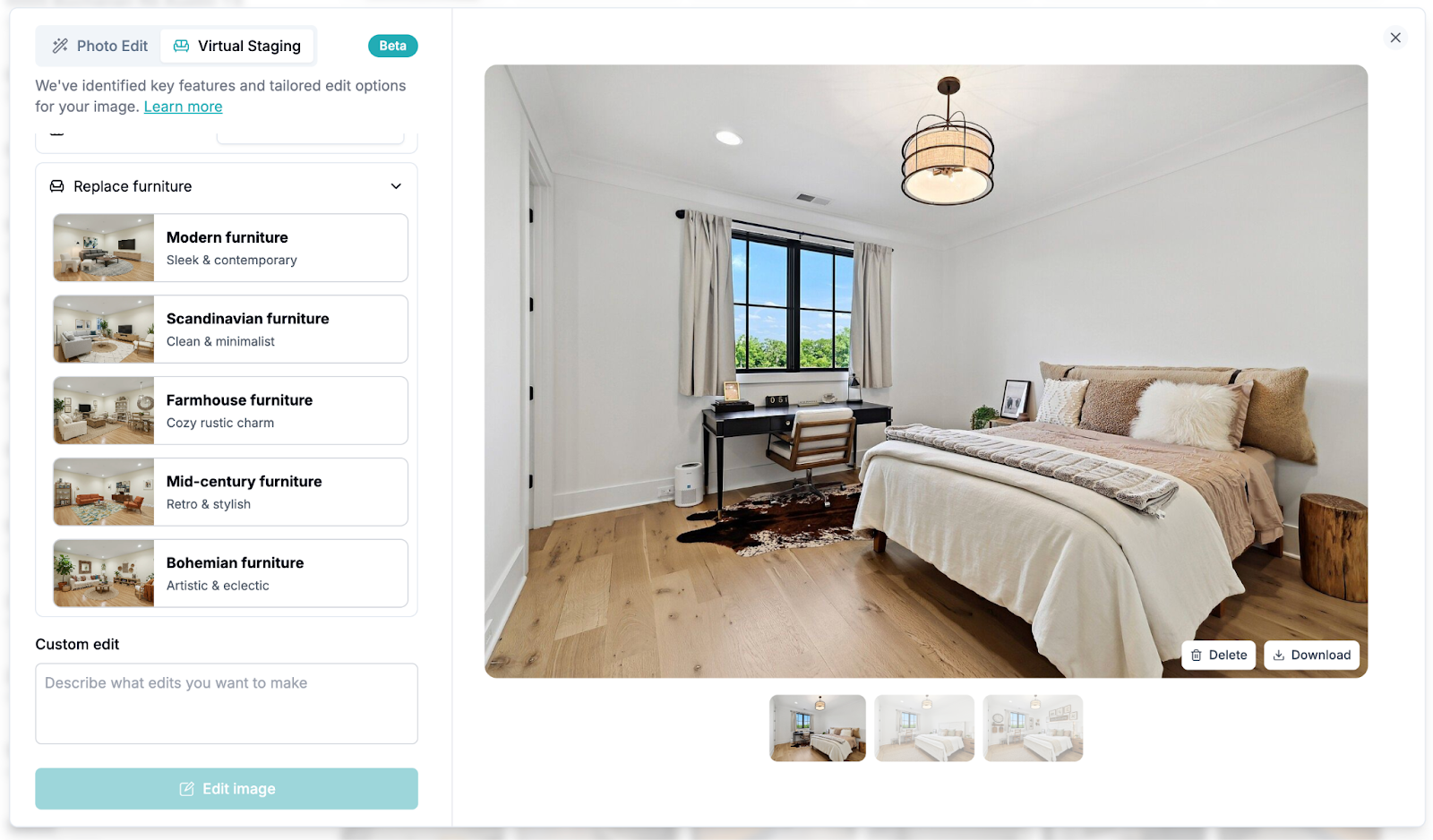
AutoReel AI Virtual Staging Edit Window
Step 2) Choose the Action
Step 3) Select the Style
Step 4) Add Optional Custom Instructions
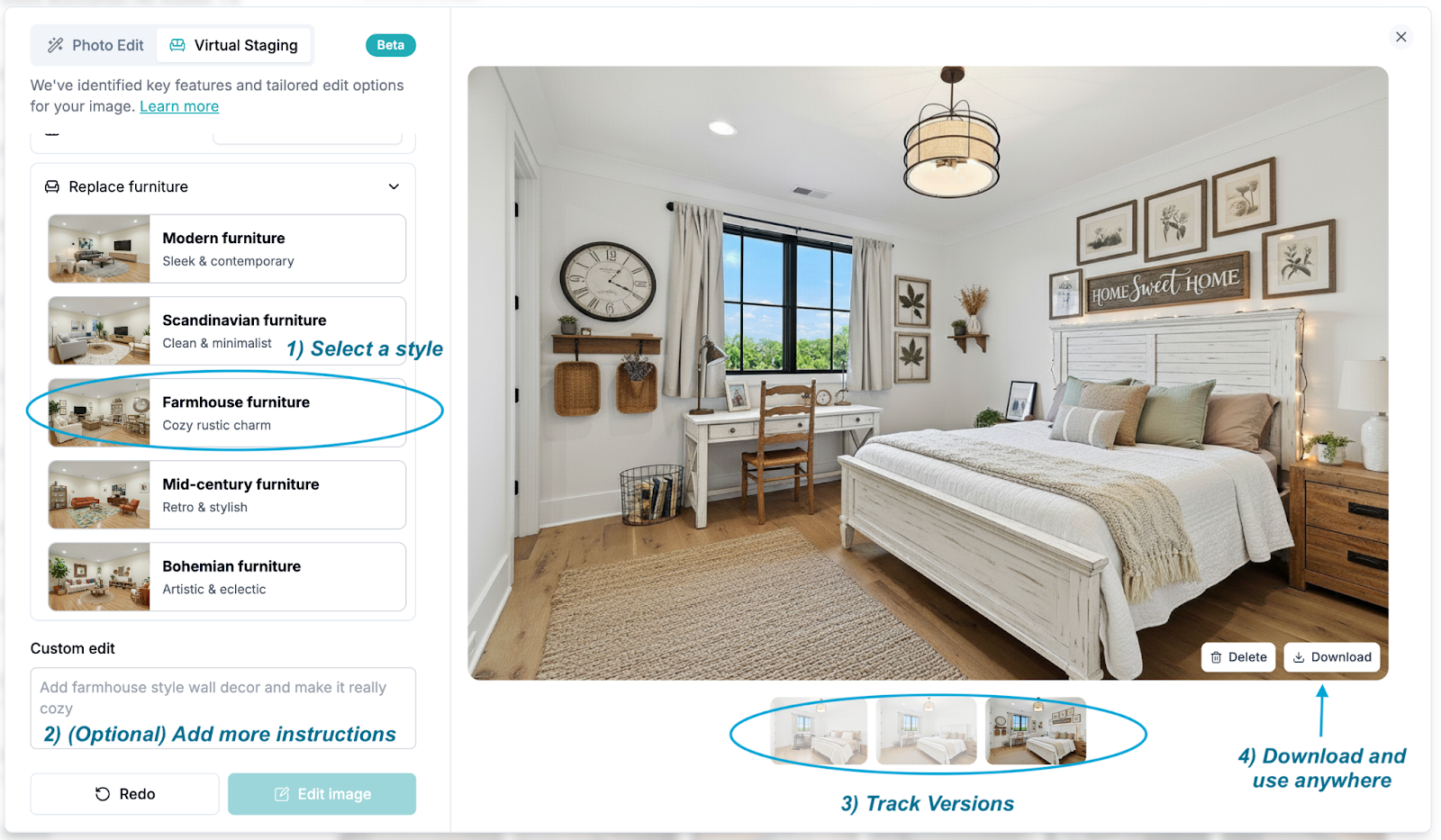
Select a virtual staging style, make it extra cozy, and track + download changes.
Step 5) Use the Staged Images Anywhere
Best Practices
Get Started with AI Virtual Staging Now
We'd love your feedback around what worked, what felt magical, and what we should improve next. Drop notes via our Contact Us form.
Built with ❤️ by the AutoReel team.
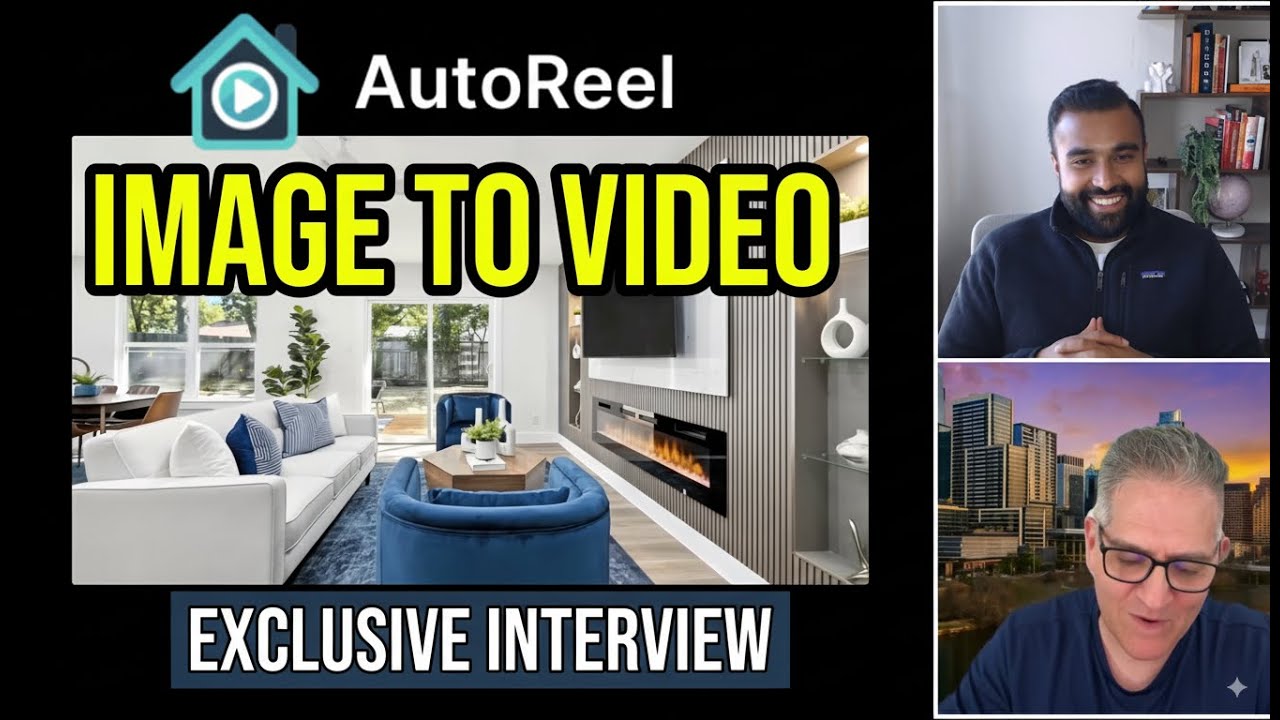
AI Virtual Staging in action — full walkthrough.
Furnish any room, generate your video
AI Virtual Staging is free in Beta with any AutoReel paid plan. Stage, enhance, and create listing videos all in one workflow.
"Groundbreaking tool. They are committed to improving the services with new updates often."
Kim Lindsey
Owner, Kim Lindsey Photography
"An absolute game-changer! Professional-quality reels in minutes. Customer service is top-notch, quick and responsive."
Joe Semkow
Photographer, Inspire Kindness
"AutoReel has enhanced our video and 3D tour services uniquely. The team behind the app is super responsive and is always looking to improve the product and its AI capabilities."
Mark Shepherd
MD & Founder, Apollo3D Ltd, UK
"The future is here! AutoReel surpasses the rest in terms of quality and accuracy. The generations look authentic with clean movements and tasteful add-ons."
Kerry Riordan
Owner, Blu Lemonade Photography