What's New

Keep up with the latest releases, improvements, and fixes we’ve made to AutoReel.

Invite teammates to share your plan

Invite teammates to work together on your AutoReel plan.

How to use it

  1. Go to your dashboard and click Invite your team
  2. Add members up to your plan's seat limit

Resize branding photos and text

Adjust the size of your photo and text in your branding templates.

How to use it

  1. Open your branding settings
  2. Use the toolbar above the video preview to adjust your templates
  3. Update the text and photo sizing

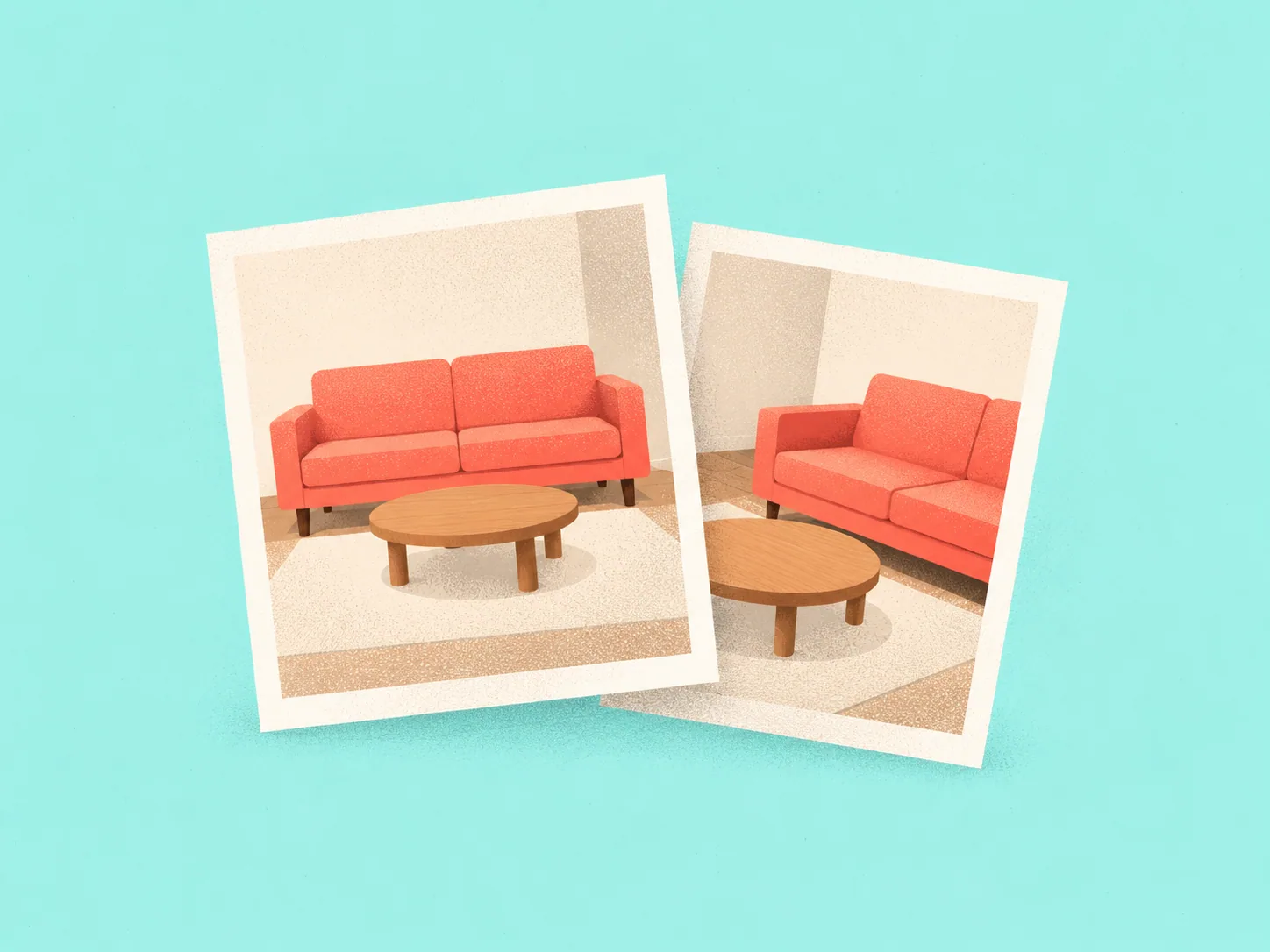
Multi-angle staging

Use a staged photo as a reference to furnish other views of the same room.

How to use it

  1. Click a photo and open AI Edit
  2. Toggle to Virtual Staging and click Multi-angle staging
  3. Pick your staged photo as the reference
  4. Review the 6 results and choose the best match for your reference photo
Learn more

Customize the Virtual Staging VFX

Choose the room type and furniture style for the Virtual Staging video effect.

How to use it

  1. Create or edit a video and click VFX > Virtual Staging
  2. Click the settings icon
  3. Choose your room type and style, then apply the video effect

Choose custom video fonts

Pick the font for the branding text in your videos.

How to use it

  1. Open Branded Video Settings
  2. Click the settings icon next to a text field
  3. Choose the font you want to use

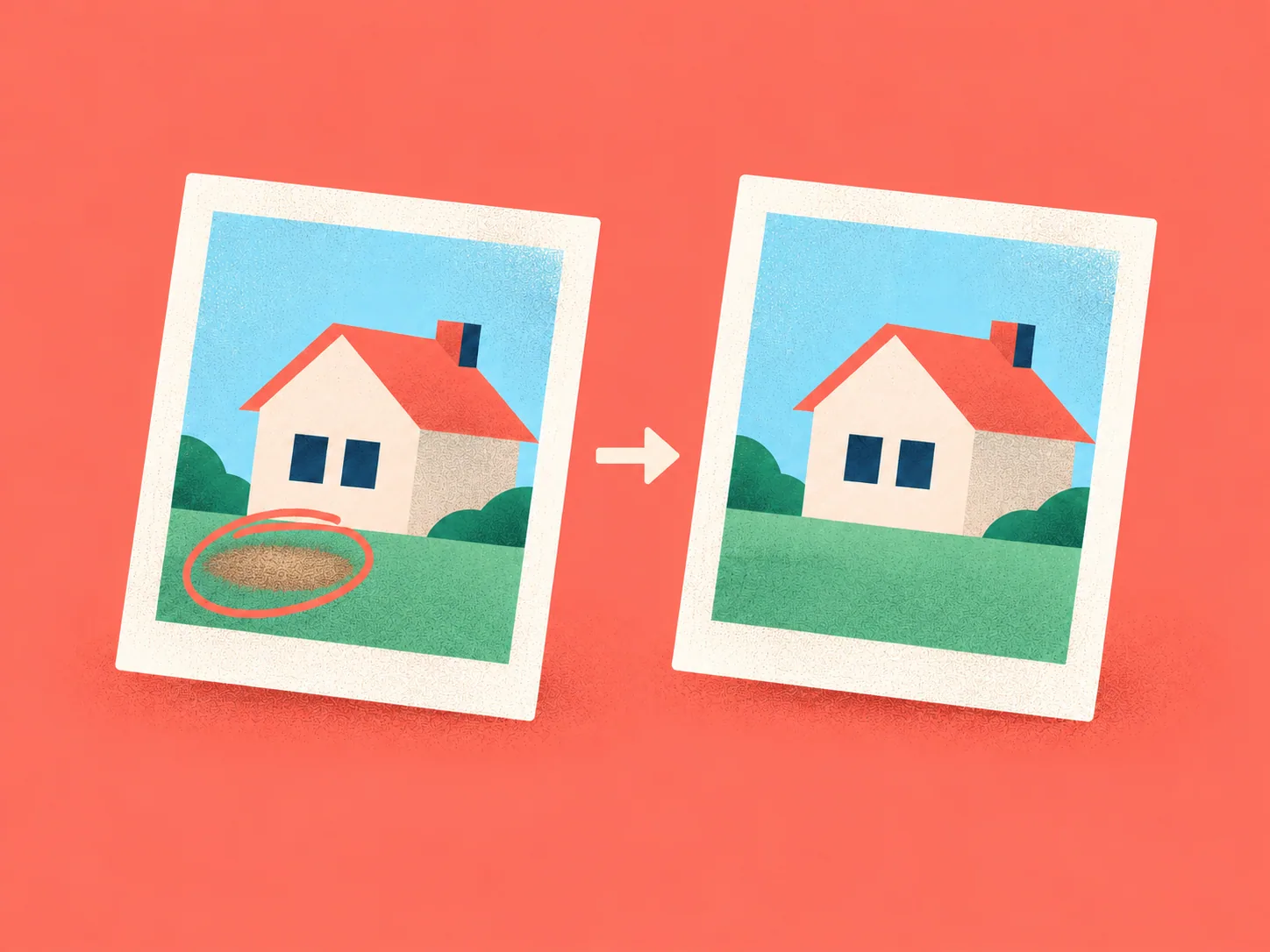
Draw mode for photo edits

Circle the area of a photo you want to edit, then describe the change.

How to use it

  1. Click on any photo and toggle Draw mode near Custom edit
  2. Draw a circle around the area you want changed
  3. Describe the edit you want

Five new outro templates

Choose from five new outro templates to finish your listing videos.

How to use it

  1. Create or edit a video and open Branding > Templates > Outro
  2. Choose one of the five new outro templates
Learn more

Refreshed music library

Choose from 30 new tracks across Dance, Indie, Pop, Classical and Country.

How to use it

  1. Open the Branded Settings tab and click Music
  2. Browse the 30 new tracks across Dance, Indie, Pop, Classical and Country
  3. Choose the song that matches the listing's mood
Learn more

Automatically select the best photos

Let AutoReel pick the best photos from your listing for your video.

How to use it

  1. Open the photo selection step when creating a video
  2. Click Pick best photos to auto-select the best scenes
  3. Review the selection before continuing

Post and schedule to Instagram and Facebook

Post your video directly to Instagram and Facebook, or schedule it for later with a caption included.

How to use it

  1. Open a finished video and click Share > Post on socials
  2. Connect your Instagram and Facebook accounts
  3. Add your caption and post now or schedule for later
Learn more

Upload a custom outro

Finish your videos with your own uploaded outro card.

How to use it

  1. Open Templates > Outro
  2. Click Upload your own outro
  3. Upload the outro card you want to use

Move and resize templates

Move and resize the elements in your intro and outro templates, like your profile photo and text.

How to use it

  1. Create or edit a video and click Templates at the branding step
  2. Click the photo or text in the preview to show its handles
  3. Drag to move it anywhere, or grab a corner to resize it
  4. Click Reset next to the field to restore the default

Beat sync

Beat Sync cuts and times your video's transitions to the music, so every listing reel lands on the beat.

How to use it

  1. Select your song for a new or existing video
  2. Toggle Beat Sync under the live preview
  3. Or go to Branding settings > Templates > Full Video > Beat Sync
Learn more

Change camera motion in Quick Edit

Update the camera motion for individual clips in an existing video through Quick Edit.

How to use it

  1. Open a video and click Edit > Quick Edit
  2. On a clip, click Update > Camera motion
  3. Choose the camera motion you want

Customize Lifestyle actors

Choose the people and ethnicity for your Lifestyle video effects, or let AutoReel choose with Auto.

How to use it

  1. Create or edit a video and click VFX > Lifestyle
  2. Click the settings icon
  3. Pick Single, Couple, or Elderly and an ethnicity, or leave Auto
  4. Click Apply

Coastal virtual staging

Furnish listing photos with the new Coastal virtual staging style.

How to use it

  1. Open a photo and click Virtual Staging
  2. Choose Coastal furniture from the style list
  3. Apply the staging to your photo
Learn more

AI Credits

Use AI Credits for extra video effects and photo edits beyond your plan's included allowance, with free credits to get started.

How to use it

  1. Add VFX or edit photos; each extra VFX or photo edit uses 1 AI credit
  2. Credits are used automatically once you've used your plan's included photo edits or virtual staging
  3. Buy more credits as needed; annual and Pro plans have lower credit prices
Learn more

Customize Gold Letter Drop

Choose your own words and a gold or silver finish for the Gold Letter Drop video effect.

How to use it

  1. Create or edit a video and click VFX > Gold Letter Drop
  2. Click the settings icon and type the word you want to drop in
  3. Choose gold or silver and apply the effect

Resize branding text

Adjust the size of the text in your video branding.

How to use it

  1. Open your branding settings
  2. Click the settings icon for a text field
  3. Drag to resize the text

Import listing photos by address

Import a listing's photos by entering its property address.

How to use it

  1. Create a new project
  2. Click the Address tab
  3. Enter the property address and click Import

New VFX

New For Sale, Just Listed and Open House effects for your listing videos.

How to use it

  1. Create or edit a video
  2. Click VFX to try For Sale, Just Listed, or Open House

Apply branding across the whole video

Put your logo and branding across the whole video, not just the intro.

How to use it

  1. Create a video or edit an existing one via Quick Edit
  2. Go to Branding > Templates > Full Video
  3. Pick your logo to use throughout the video

Four new intro templates

Choose from four new intro templates to open your listing videos.

How to use it

  1. Open Branding > Templates
  2. Browse the intro templates and choose one of the four new options
Learn more

Speed ramps

Add speed ramps to your listing videos with a single toggle under Templates.

How to use it

  1. Create a new video or edit an existing one
  2. Find the speed ramp option under templates
  3. Toggle it on and render the video
Learn more

VFX (Video Effects)

Add day-to-dusk timelapses, virtual staging animations and lifestyle scenes to your listing videos. Available on all plans.

How to use it

  1. Start or open a project and select your photos
  2. Click VFX next to any clip and pick your effect
  3. Click Render to generate your video
Learn more

Voice cloning

Record a short voice sample and use your cloned voice to narrate listing videos.

How to use it

  1. Record yourself reading a short script (about 60 seconds, right in your browser)
  2. Let AutoReel save and clone your voice
  3. Pick your cloned voice for the voiceover when creating a video, using your own script or an AutoReel-written one
  4. For an existing video, open it and click Edit > Quick Edit to add your cloned voice
Learn more

Generate branded and non-branded videos together

Generate a branded and a non-branded version of your video together for the same video credit.

How to use it

  1. Create a video and choose your style and branding
  2. Generate once to get both a branded and a non-branded version for the same credit
Learn more

Customize vertical cropping

Choose the framing for each photo in your vertical videos.

How to use it

  1. Create or edit a video and choose Portrait orientation
  2. Hover a photo and click the crop icon
  3. Adjust the frame to focus on the area you want in your vertical video
Learn more

AI Photo Edits

Enhance listing photos inside AutoReel: add twilight skies, fix lawns, declutter rooms, remove furniture, turn on fireplaces and black out TVs in one click.

How to use it

  1. Open your listing photos inside AutoReel
  2. Pick an edit: twilight sky, lawn fix, declutter or furniture removal, fireplace on, or TV blackout
  3. Apply it in one click
Learn more

Social media captions

Generate captions for Instagram, Facebook, LinkedIn, YouTube and X straight from your listing, ready to paste with your video.

How to use it

  1. Open a project
  2. Click Captions, next to Video and Images
  3. Generate captions for Instagram, Facebook, LinkedIn, YouTube, or Twitter/X in one click
  4. Copy or edit the caption, or generate another version

Credit rollover

Unused credits roll over for up to 90 days on monthly plans and one extra year on annual plans.

How to use it

Unused credits roll over automatically: up to 90 days on monthly plans and one extra year on annual plans.

  1. Open your dashboard
  2. Click Manage Plan to check your rollover credits

Create your AI property videos today

AutoReel helps creators, marketers, and real estate pros turn raw content into polished, platform-ready reels in minutes.